

Introduction#
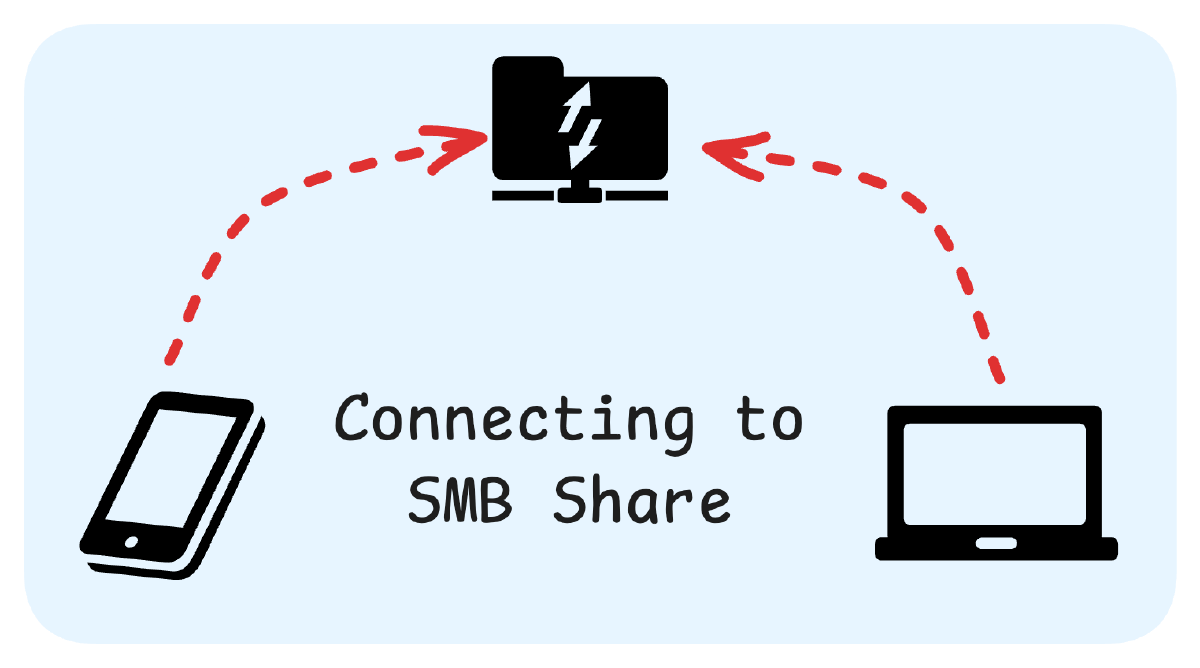
This guide explains how to connect to an SMB (Samba) network share from Windows, Mac, and Android devices.
Prerequisites#
- SMB server address (e.g.,
192.168.0.34orexample.com) - Username and password for the SMB share
- Access to the network samba is hosted on
Windows#
Connecting to an SMB Share#
Open the File Explorer app.
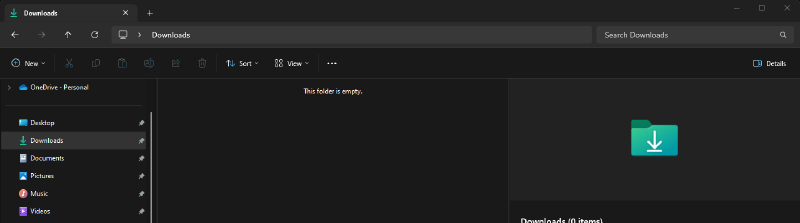
Enter the SMB address (e.g.,
\\192.168.0.34) in the address bar.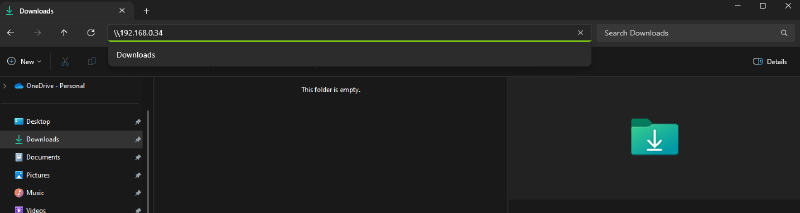
Enter your login details when prompted.
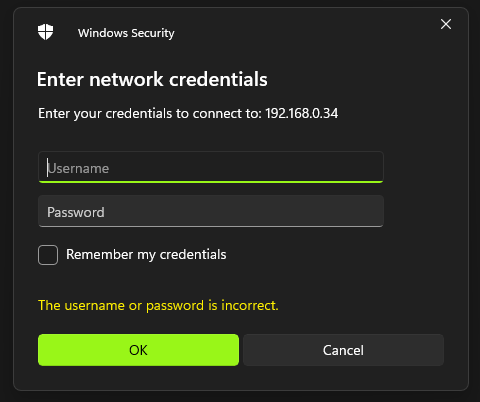
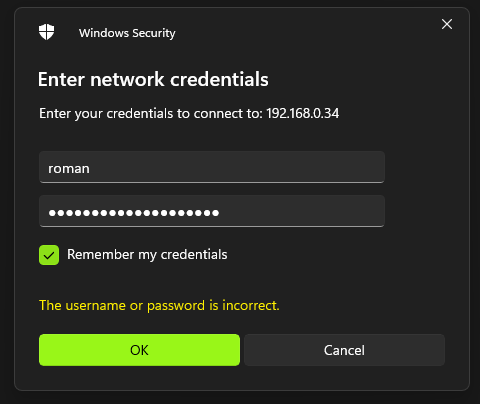
Access the available drives and files.
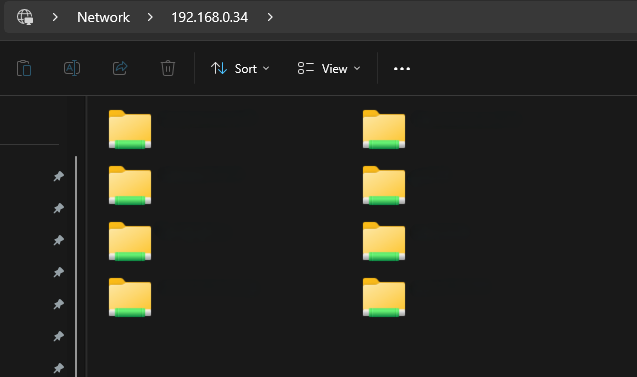
Pin SMB Share to Quick Access#
Right-click the SMB share and select
Pin to Quick Access.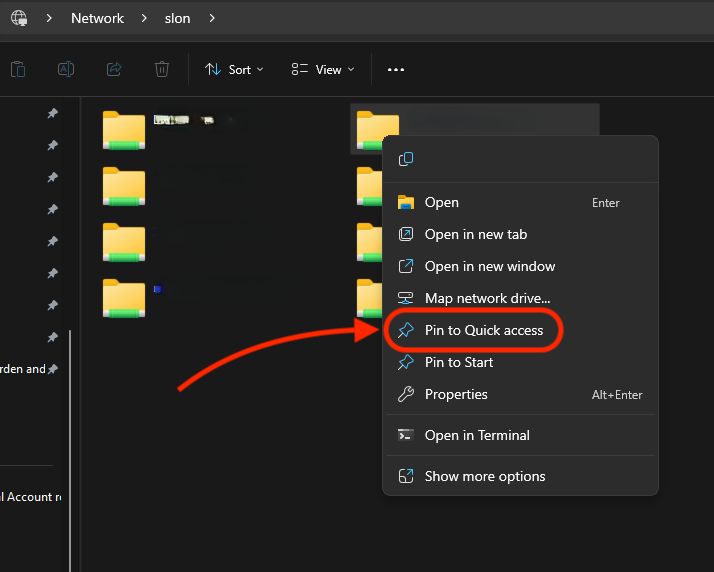
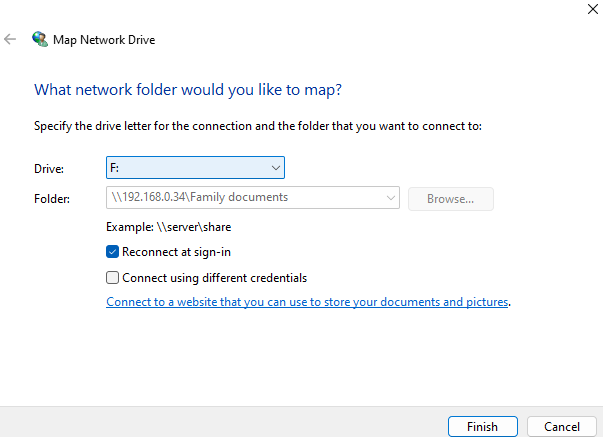
Map SMB Share as a Network Drive#
Right-click the SMB share and select
Map network drive.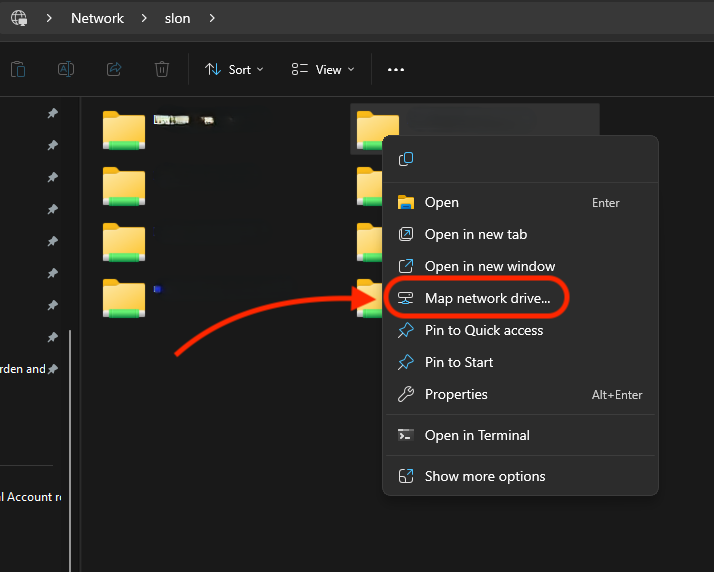
Choose a drive letter and confirm.
Android#
Connecting to an SMB Share (Samsung Example)#
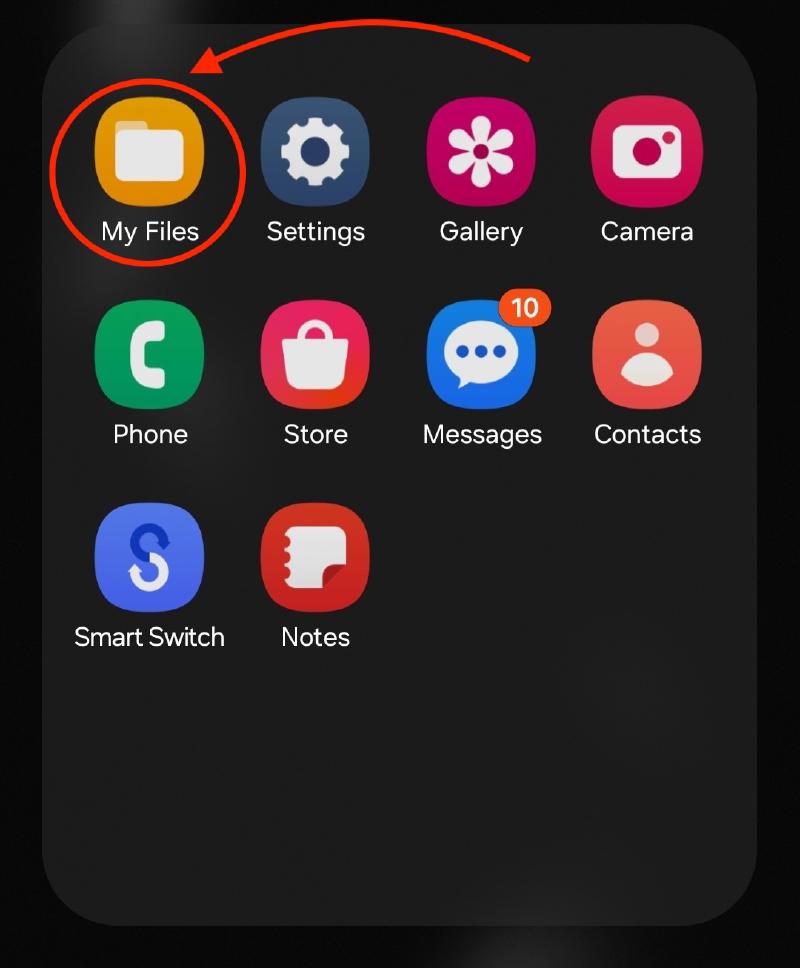
Open the Files app.
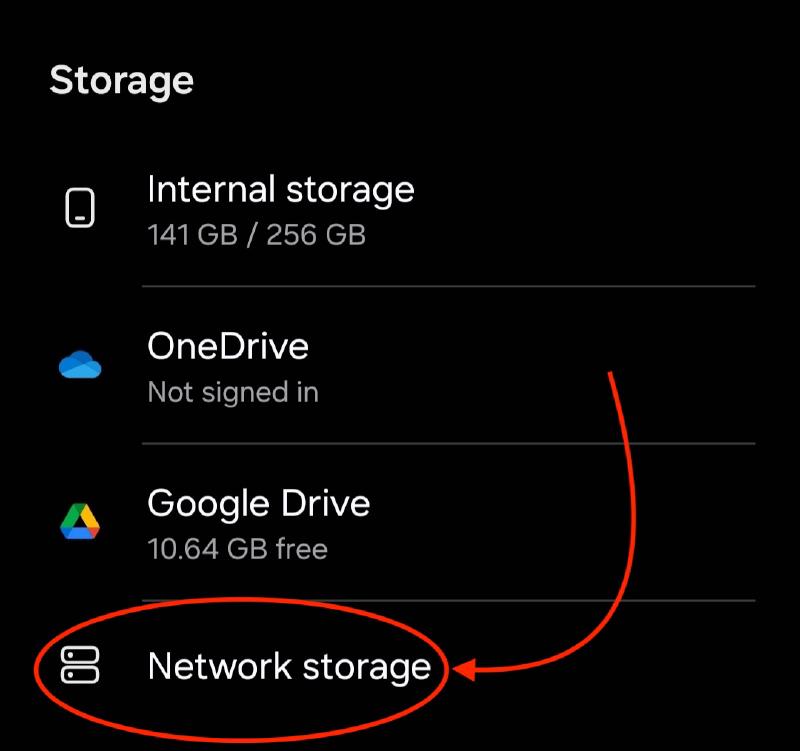
Tap “Networks”.
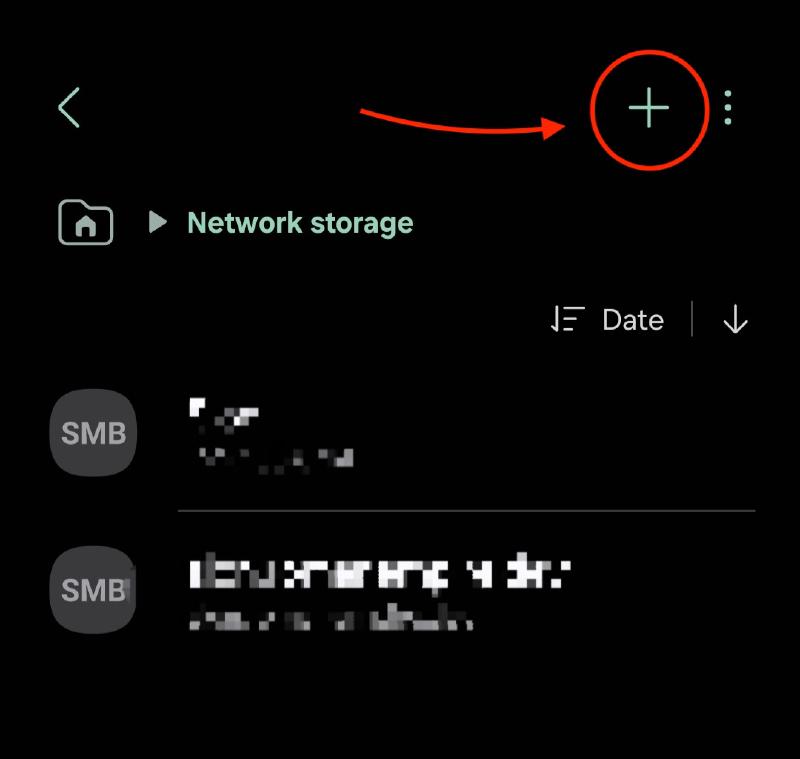
Tap “Add Storage”.
Choose “SMB”.
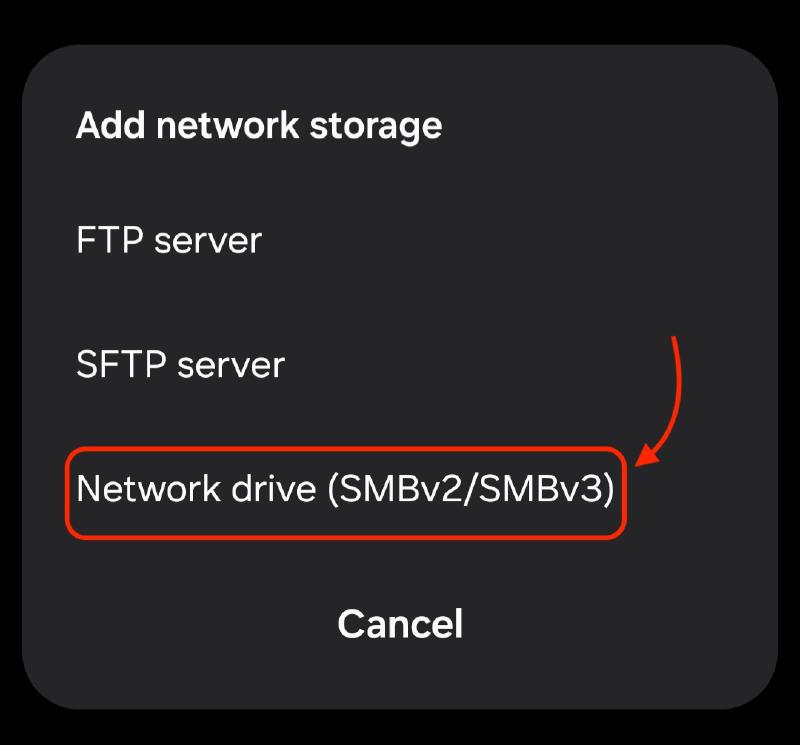
Add network share:
- Auto Detect
Let the app scan for available shares.
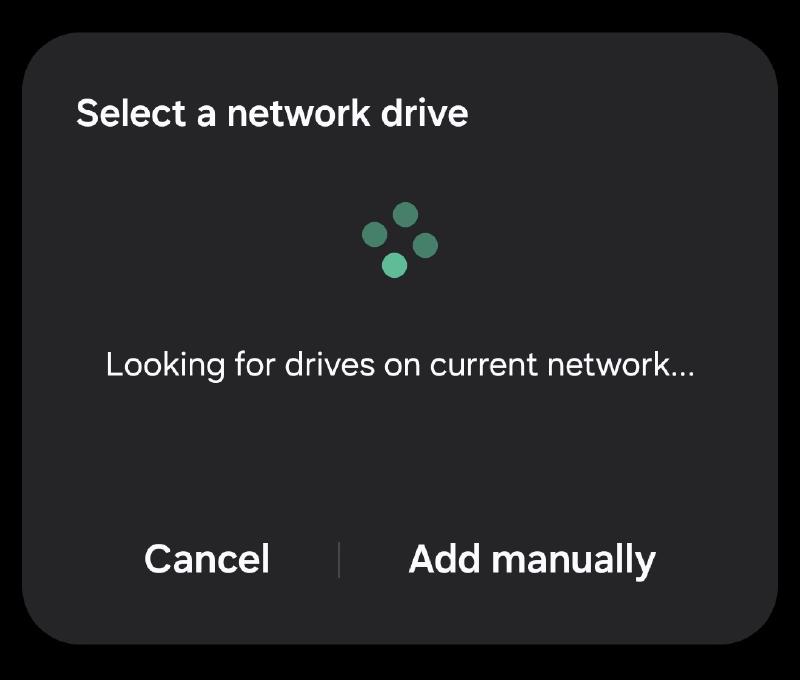
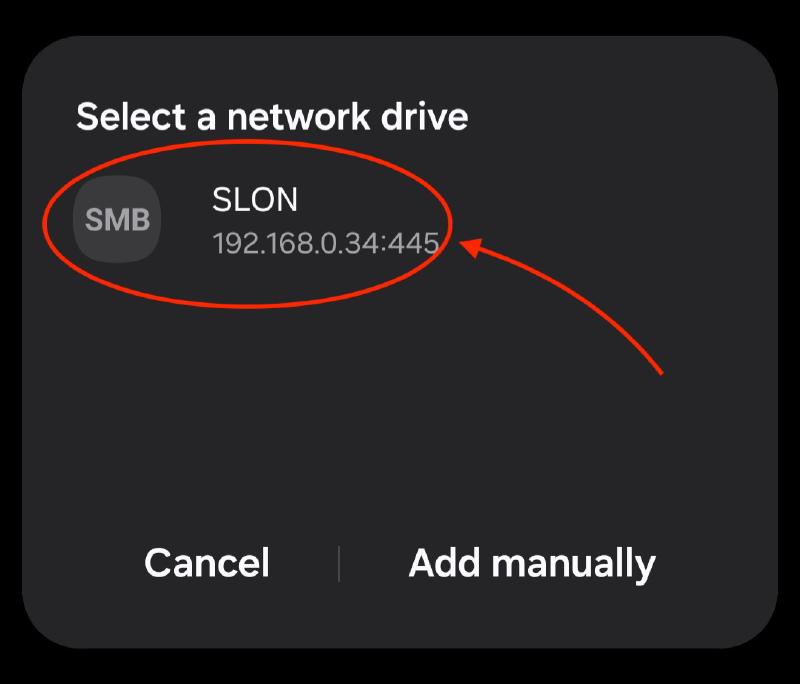
- Add Manually
Enter the SMB address and credentials.
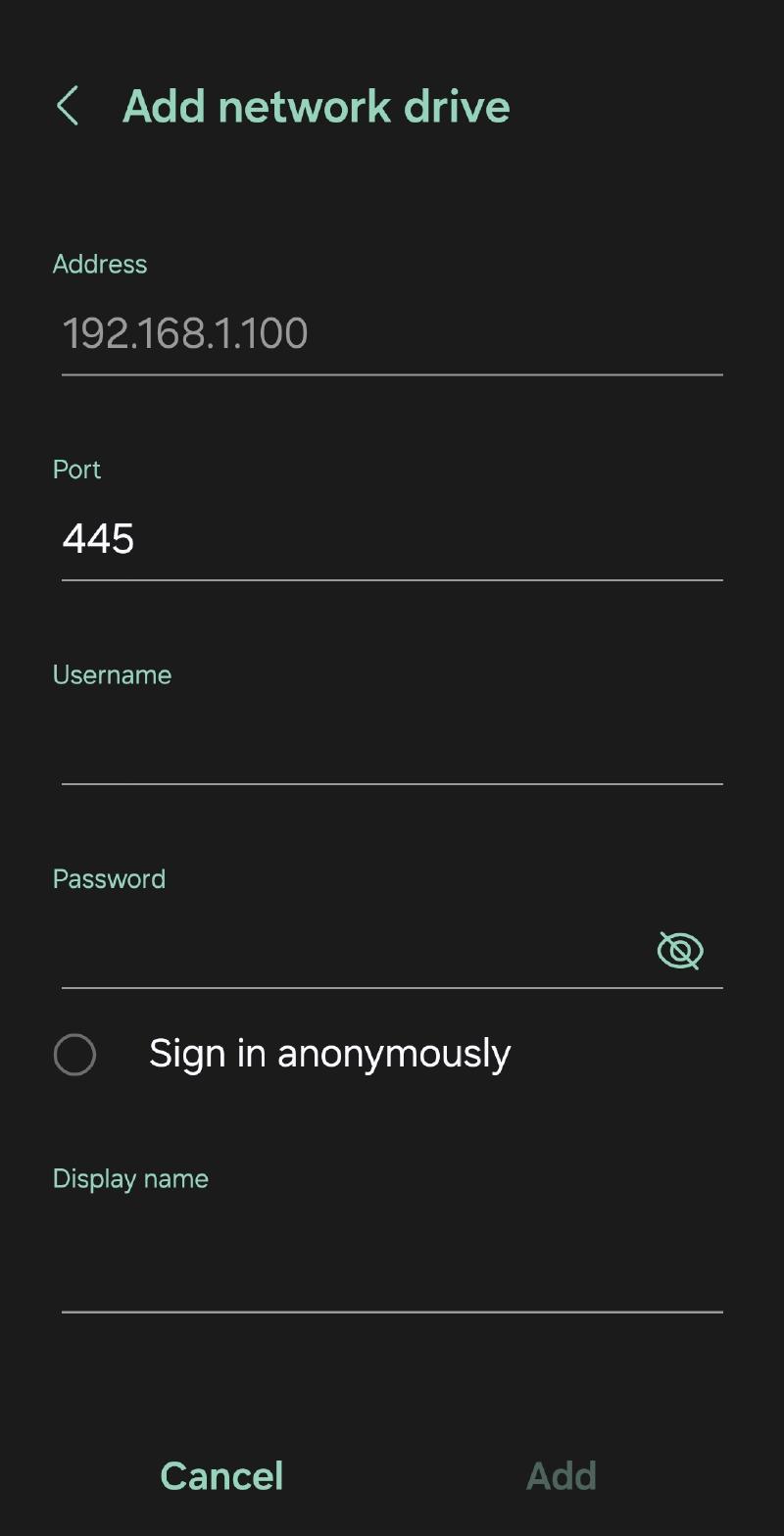
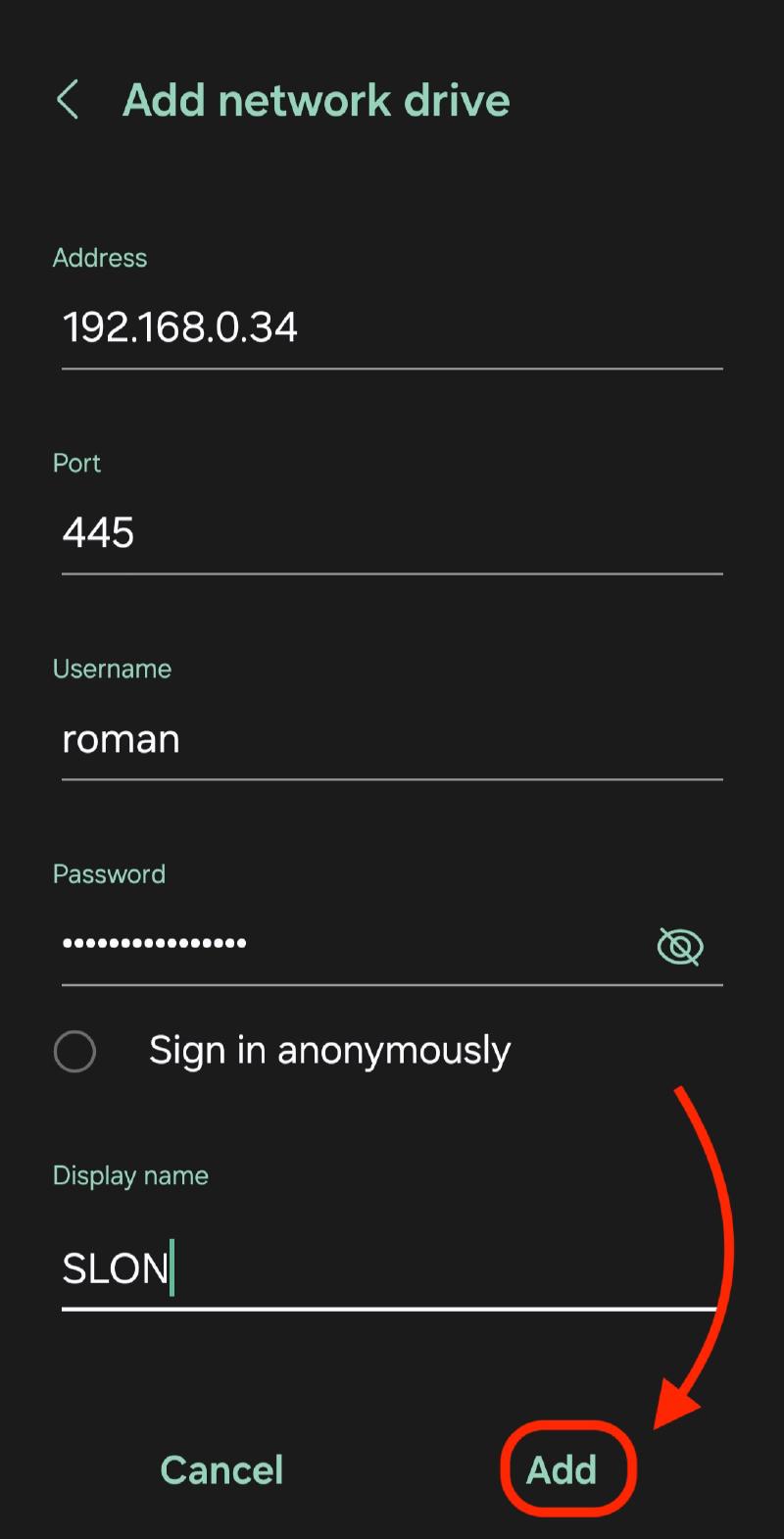
- Auto Detect
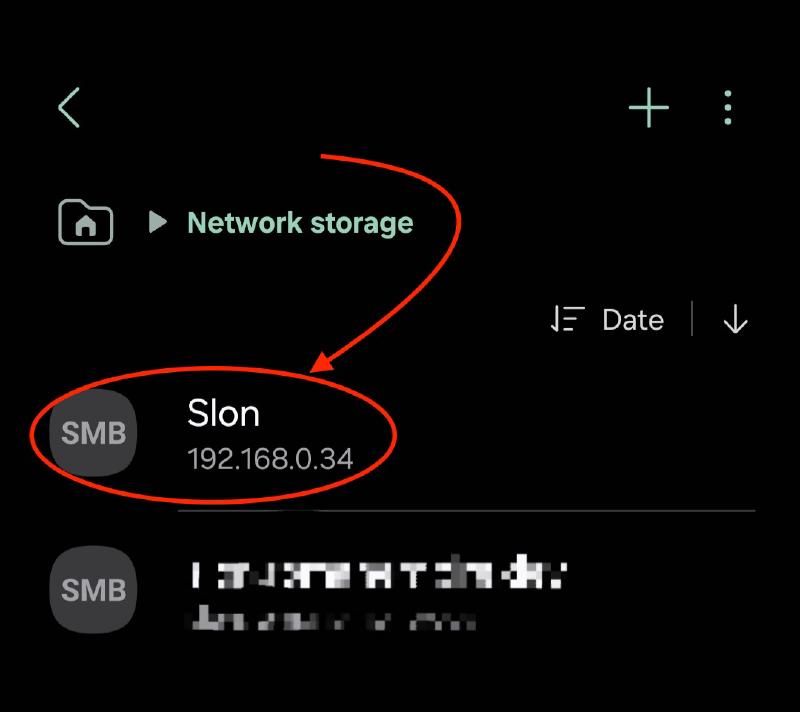
Done! You can now access your SMB files.
Recommended App:
Material Files - Google Play
Material Files - Github
Mac#
Connecting to an SMB Share#
- Open Finder
- Click
Go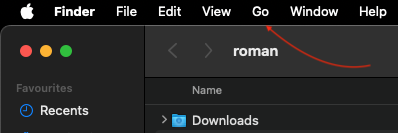
- Select
Connect to Serveror from Finder itself click⌘k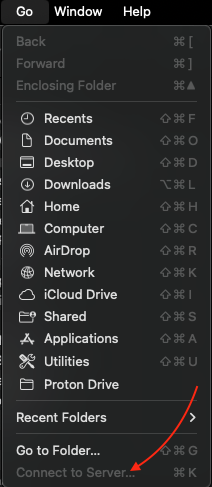
- Enter
smb://[server_address]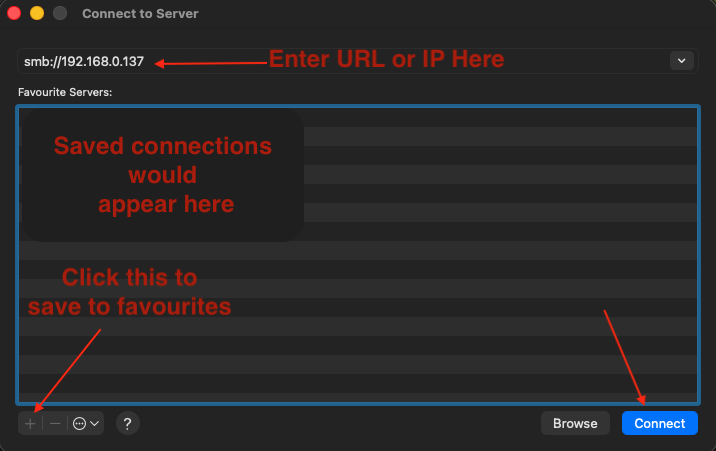
- If the server requires authentication, you will be prompted to enter your username and password.
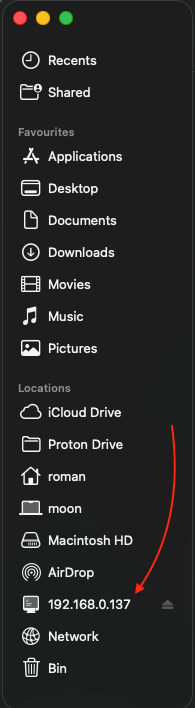
- Access the Share:
iPhone#
Instructions not available. Will update if tested in the future.